
Open a version
- Open the document’s Versions panel.
- Select a save point. The newest row shows latest. A row can show no content change when a path move recorded the same bytes.
- Workspaces opens a pinned version view with
?version=<version>in the browser address.
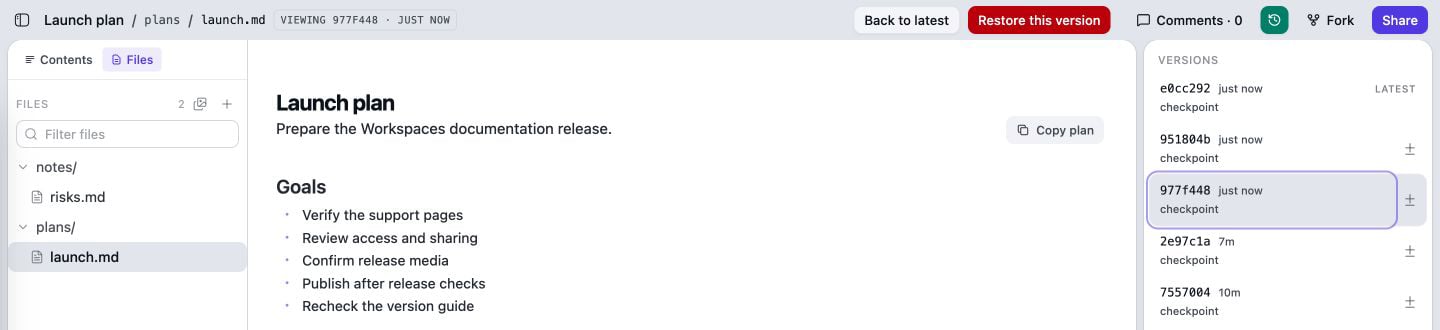
This pinned save point shows the version list and controls for returning to the latest document or restoring the selected version.
Copy a version link
The pinned version view has no separate permanent-link button. Select the version, then copy the browser address. The?version= app URL uses the workspace’s normal access rules. It is not a
new public credential. It is also different from a frozen raw URL ending in
@<version>.
Compare Markdown
For a Markdown save point, select Compare with live. The Changes view can show No earlier version to compare yet or No changes between these two versions. Use Copy link to share the Changes view with someone who already has workspace access. HTML has version history and restore, but no visual comparison.Restore a version
You must be a signed-in editor.- Open the save point.
- Select Restore this version.
- Select Restore version.
403. Anonymous guests do not see the control.
Reviewed July 22, 2026. Maintained by the Plannotator documentation team.