
guides/setup.md creates the guides folder in the
file tree.
Add a document
You must sign in and have edit access to use the browser’s file controls. Guests with edit access can edit a Markdown document’s body, but the guest view has no controls to create, rename, move, or delete files.1
Open the file tree
Open the workspace and find its file tree.
2
Create the document
Select New document and enter the full path, such as
research/decision.md.3
Choose a useful suffix
Use
.md or .markdown for Markdown. Use .html or .htm for HTML.
Workspaces treats every other suffix as Markdown in this dialog.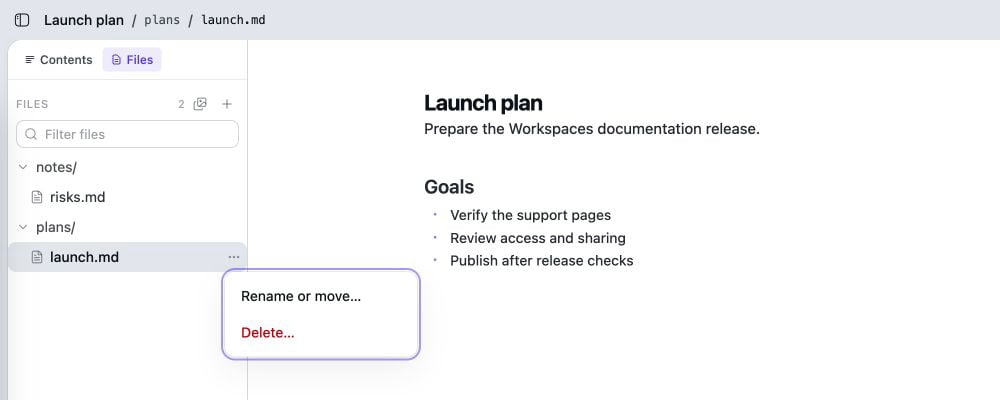
The file tree builds folders from document paths. Each document's menu contains Rename or move and Delete.
Rename or move a document
Open the document’s file menu and select Rename or move…. Enter the New document path, including the filename and suffix. Workspaces moves the existing document, so it keeps its comments and history. Workspaces reports a path conflict if a document or uploaded artifact already uses the target path.Delete a document
Open the document’s file menu and select Delete…. In the Delete ? dialog, select Delete document. The app warns There is no undo from the app. Deletion removes the document from the workspace. To move a document, use Rename or move…. Deleting and recreating it loses its history and comments.Path rules
Documents and uploaded artifacts share one path space. Two items cannot use the same path. A path cannot:- Start or end with
/, or contain//. - Contain a
.or..segment. - Contain a
.gitpath segment, a backslash, a control character,?,#, or%. - Be
refsor start withrefs/, which Workspaces reserves.