> ## Documentation Index
> Fetch the complete documentation index at: https://help.plannotator.ai/llms.txt
> Use this file to discover all available pages before exploring further.
# Create and Organize a Workspace
> Create a private personal workspace, add documents at full paths, and rename, move, or delete them.
**New workspace** creates an empty private workspace owned by your account. It
is a personal workspace, even when your account belongs to an organization.
## Create the workspace
Sign in. From **Home**, find **Your workspaces** and select **New
workspace**.
Enter an optional **Name**, then select **Create workspace**.
Select **Create your first document**. Enter the full document path, such
as `plans/launch.md`, then select **Create document**.
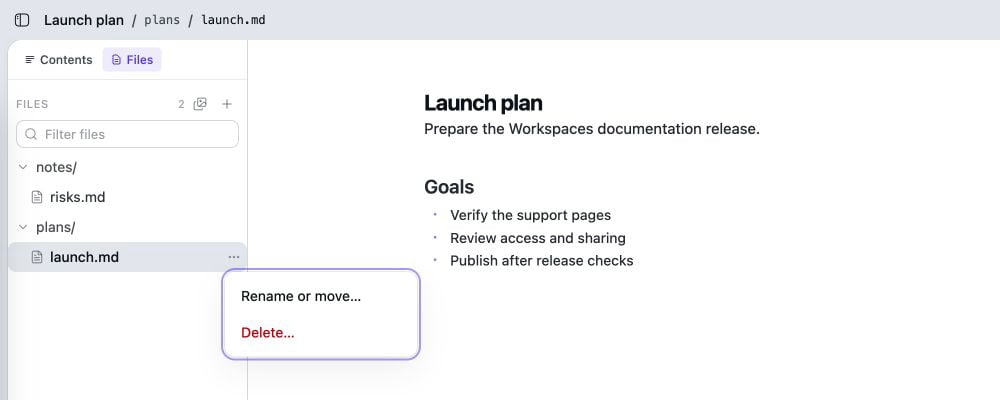
Workspaces opens the new document. The `plans/` folder appears in the file tree
because it is part of the path. You do not create empty folders.
 ## Add, move, or delete a document
* Select **New document** to add another file at a full path.
* Open the document's actions and select **Rename or move…** to change its full
path. Its comments and version history stay with it.
* Select **Delete…**, then **Delete document** to remove it. The app has no
undo for document deletion.
A document and an artifact cannot use the same path. If Workspaces reports a
path conflict, choose another path or remove the item already there.
## Organization workspace limits
The browser cannot create an empty organization workspace or move a personal
workspace into one.
To copy one current document into a new organization workspace, use **Fork**
and choose **In *organization***. The new workspace gets the document and its
referenced assets, but not its comments or older version history. Organization
members can view and edit the copied document.
Agents and scripts can create an organization workspace through the [live
API](/workspaces/agents/api) by supplying its organization ID.
If **Share** offers **Your organization** for a personal workspace but saving
fails, the workspace is still personal. Use **Fork** for one document or create
an organization workspace through the API.
Check document types, path rules, guest limits, and delete behavior.
*Reviewed July 20, 2026. Maintained by the Plannotator documentation team.*
## Add, move, or delete a document
* Select **New document** to add another file at a full path.
* Open the document's actions and select **Rename or move…** to change its full
path. Its comments and version history stay with it.
* Select **Delete…**, then **Delete document** to remove it. The app has no
undo for document deletion.
A document and an artifact cannot use the same path. If Workspaces reports a
path conflict, choose another path or remove the item already there.
## Organization workspace limits
The browser cannot create an empty organization workspace or move a personal
workspace into one.
To copy one current document into a new organization workspace, use **Fork**
and choose **In *organization***. The new workspace gets the document and its
referenced assets, but not its comments or older version history. Organization
members can view and edit the copied document.
Agents and scripts can create an organization workspace through the [live
API](/workspaces/agents/api) by supplying its organization ID.
If **Share** offers **Your organization** for a personal workspace but saving
fails, the workspace is still personal. Use **Fork** for one document or create
an organization workspace through the API.
Check document types, path rules, guest limits, and delete behavior.
*Reviewed July 20, 2026. Maintained by the Plannotator documentation team.*