> ## Documentation Index
> Fetch the complete documentation index at: https://help.plannotator.ai/llms.txt
> Use this file to discover all available pages before exploring further.
# Add and Organize Files in Workspaces
> Create, rename, move, and delete Markdown and HTML documents with path-based folders in Workspaces.
Workspaces builds folders from each document's path. Folders are not separate
objects. A path such as `guides/setup.md` creates the `guides` folder in the
file tree.
## Add a document
You must sign in and have edit access to use the browser's file controls. Guests
with edit access can edit a Markdown document's body, but the guest view has no
controls to create, rename, move, or delete files.
Open the workspace and find its file tree.
Select **New document** and enter the full path, such as
`research/decision.md`.
Use `.md` or `.markdown` for Markdown. Use `.html` or `.htm` for HTML.
Workspaces treats every other suffix as Markdown in this dialog.
The new document appears at its path. Any missing folder levels appear in the
tree.
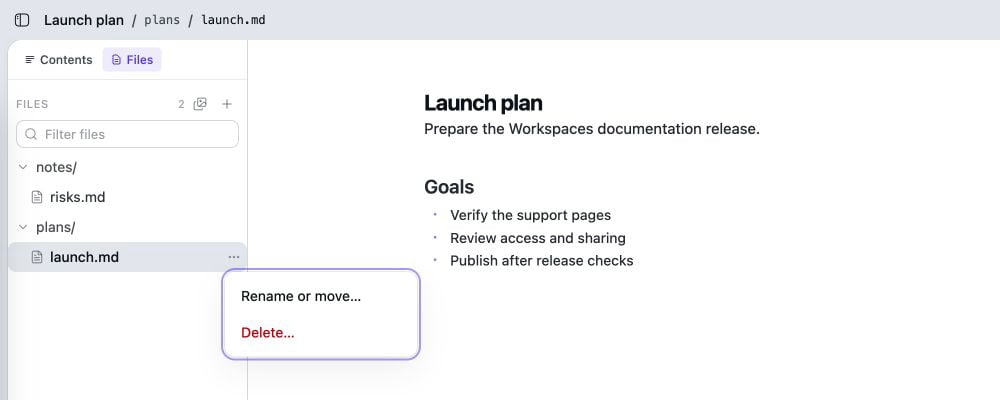 ## Rename or move a document
Open the document's file menu and select **Rename or move…**. Enter the **New
document path**, including the filename and suffix.
Workspaces moves the existing document, so it keeps its comments and history.
Workspaces reports a path conflict if a document or uploaded artifact already
uses the target path.
## Delete a document
Open the document's file menu and select **Delete…**. In the **Delete {path}?**
dialog, select **Delete document**.
The app warns **There is no undo from the app.** Deletion removes the document
from the workspace. To move a document, use **Rename or move…**. Deleting and
recreating it loses its history and comments.
## Path rules
Documents and uploaded artifacts share one path space. Two items cannot use the
same path.
A path cannot:
* Start or end with `/`, or contain `//`.
* Contain a `.` or `..` segment.
* Contain a `.git` path segment, a backslash, a control character, `?`, `#`, or
`%`.
* Be `refs` or start with `refs/`, which Workspaces reserves.
Spaces and Unicode characters are allowed.
## Current copy limit
The browser cannot copy a document within the same workspace. The API can copy
one. [Fork](/workspaces/sharing/fork-a-document) can place one document in a new
workspace.
*Reviewed July 20, 2026. Maintained by the Plannotator documentation team.*
## Rename or move a document
Open the document's file menu and select **Rename or move…**. Enter the **New
document path**, including the filename and suffix.
Workspaces moves the existing document, so it keeps its comments and history.
Workspaces reports a path conflict if a document or uploaded artifact already
uses the target path.
## Delete a document
Open the document's file menu and select **Delete…**. In the **Delete {path}?**
dialog, select **Delete document**.
The app warns **There is no undo from the app.** Deletion removes the document
from the workspace. To move a document, use **Rename or move…**. Deleting and
recreating it loses its history and comments.
## Path rules
Documents and uploaded artifacts share one path space. Two items cannot use the
same path.
A path cannot:
* Start or end with `/`, or contain `//`.
* Contain a `.` or `..` segment.
* Contain a `.git` path segment, a backslash, a control character, `?`, `#`, or
`%`.
* Be `refs` or start with `refs/`, which Workspaces reserves.
Spaces and Unicode characters are allowed.
## Current copy limit
The browser cannot copy a document within the same workspace. The API can copy
one. [Fork](/workspaces/sharing/fork-a-document) can place one document in a new
workspace.
*Reviewed July 20, 2026. Maintained by the Plannotator documentation team.*