> ## Documentation Index
> Fetch the complete documentation index at: https://help.plannotator.ai/llms.txt
> Use this file to discover all available pages before exploring further.
# Create and Revoke Workspaces API Keys
> Create, store, and revoke a Workspaces API key for scripts, agents, MCP, and read-only Git access.
A Workspaces API key uses your workspace ownership and current organization
memberships. It does not carry access from a share link. Create a separate key
for each tool so you can revoke one without stopping the rest.
## Create a key
You must sign in to create or manage API keys.
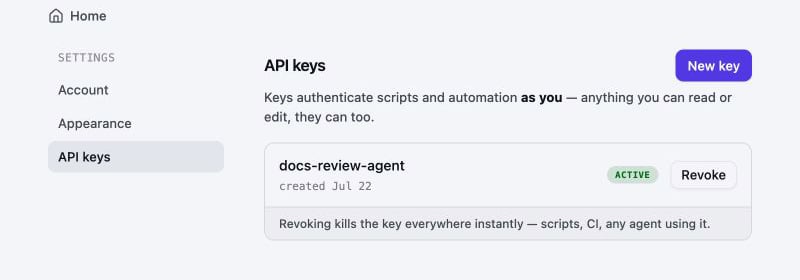
Open **Settings**, then select **API keys**.
Select **New key**, enter a name that identifies the tool, then select
**Create key**.
Select **Copy key** and store it with the tool's built-in key storage.
Workspaces shows the full key once and does not keep a copy it can show
again.
Select **Done** after you have stored the key.
The key starts with `wsk_live_`. Do not put it in a code repository, document,
screenshot, browser code, or terminal output that you will share.
 ## What the key can access
The key can access your personal workspaces and the organization workspaces
available to your account.
Hosted Workspaces usually removes access granted by organization membership
within 60 seconds after an administrator removes a member. If Workspaces cannot
refresh the membership list, cached access may last up to 10 minutes.
Workspaces gives the removed person's organization workspaces to the admin
who removes them. The person's API keys lose both owner access to those
workspaces and access granted by the removed membership. The keys remain active
and can still use the person's personal workspaces, other current organization
memberships, and workspaces that are public or open to anyone with the link.
Blocking or deactivating sign-in does not revoke an existing API key on hosted
or self-hosted Workspaces. The key owner must revoke it. Workspaces does not
let an administrator revoke another user's key.
An API key does not grant access to another person's private workspace.
## Revoke a key
Open **Settings** > **API keys**, find the key, and select **Revoke**. Select
**Really revoke?** to confirm.
After you revoke a key, new API, MCP, and Git requests with it fail. A request
already in progress may finish. If a tool must keep running, give it a new key
before you revoke the old one.
## If you lose a key
Workspaces cannot show the key again. Revoke the lost key and create a new
one. Use a new name if that helps you identify which tools still use the old
key.
Use a Workspaces API key to connect an agent through MCP.
*Reviewed July 22, 2026. Maintained by the Plannotator documentation team.*
## What the key can access
The key can access your personal workspaces and the organization workspaces
available to your account.
Hosted Workspaces usually removes access granted by organization membership
within 60 seconds after an administrator removes a member. If Workspaces cannot
refresh the membership list, cached access may last up to 10 minutes.
Workspaces gives the removed person's organization workspaces to the admin
who removes them. The person's API keys lose both owner access to those
workspaces and access granted by the removed membership. The keys remain active
and can still use the person's personal workspaces, other current organization
memberships, and workspaces that are public or open to anyone with the link.
Blocking or deactivating sign-in does not revoke an existing API key on hosted
or self-hosted Workspaces. The key owner must revoke it. Workspaces does not
let an administrator revoke another user's key.
An API key does not grant access to another person's private workspace.
## Revoke a key
Open **Settings** > **API keys**, find the key, and select **Revoke**. Select
**Really revoke?** to confirm.
After you revoke a key, new API, MCP, and Git requests with it fail. A request
already in progress may finish. If a tool must keep running, give it a new key
before you revoke the old one.
## If you lose a key
Workspaces cannot show the key again. Revoke the lost key and create a new
one. Use a new name if that helps you identify which tools still use the old
key.
Use a Workspaces API key to connect an agent through MCP.
*Reviewed July 22, 2026. Maintained by the Plannotator documentation team.*